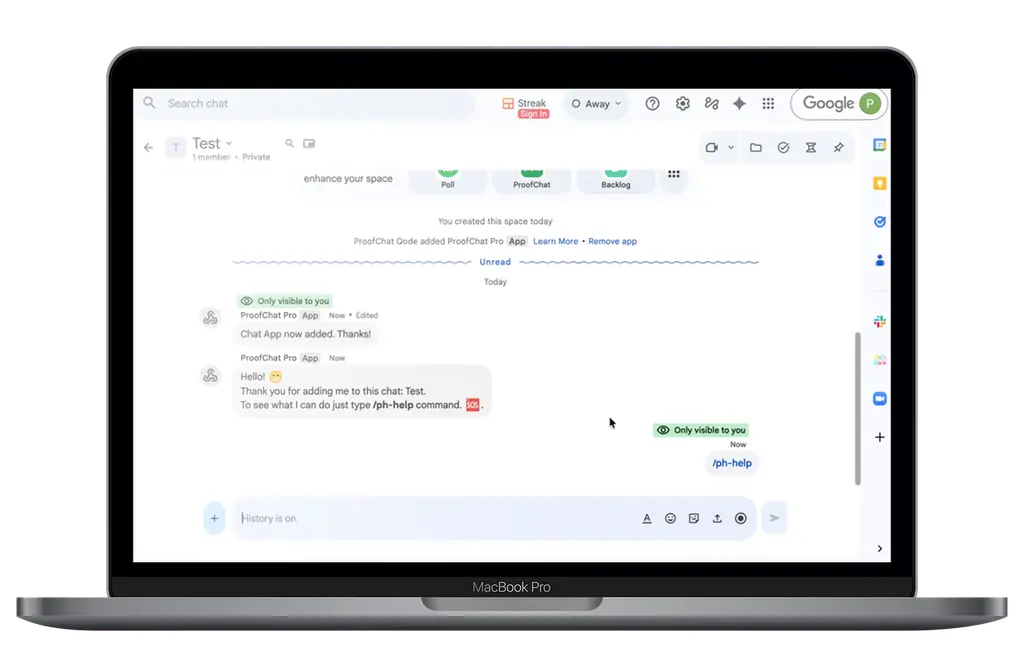
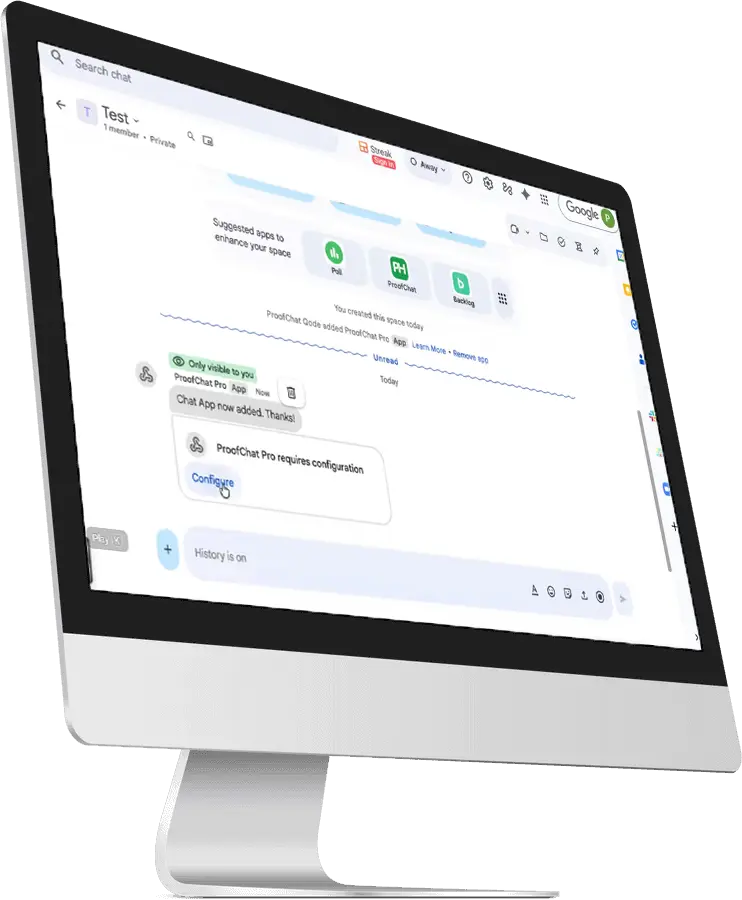
Install ProofHub for Google Chat™, authenticate your accounts, and get started right away.
Unified Workflows.
Create and manage ProofHub tasks directly from Google Chat™ using slash commands and the context menu.
Set up ProofChat in minutes by following our step-by-step guide below.
Perfect for teams who want to keep projects and communication in sync.
Step 1: Sign Up for Accounts
Begin by creating your ProofHub account, and ensure you have
access to Google Chat™. Both services are required before integration.
Visit the ProofHub website to register. For Google Chat™, use your Google Workspace™ account or sign up at chat.google.com.
Step 2: Install the Integration
Navigate to the ‘Add to Google Chat’ button provided at the top of this page. Click it to install the ProofHub for Google Chat™ application in your Google Chat™ account.
Once installed, follow the prompts to authenticate and authorize access between ProofHub and Google Chat™.
Step 3: Authenticate and Connect
In Google Chat, use the /proofhub connect command to start the authentication process. You’ll be guided through connecting your ProofHub and Google accounts securely.
After authentication, you can begin using ProofHub commands directly from Google Chat to interact with your ProofHub workspace.
Step 4: Linking Projects and Channels
In ProofHub, go to project settings, find the integrations section, and choose Google Chat™. Authenticate your Google account and select the chat channel where notifications should be sent.
Step 5: Use ProofHub Commands
Interact with ProofHub via slash commands in Google Chat™. For example, /proofhub addtask to create new tasks and /proofhub to get help and see a list of all commands.
What Can You Do With the Integration?
• Add, edit, and track ProofHub tasks without leaving Google Chat™. • Link ProofHub projects to specific Google Chat™ channels.